[Resolved] Plex Rockon: Nvidia GPU Passthru for Hardware Accelerated Transcoding

Has anyone been able to get hw accelerated transcoding to work with a nvidia gpu?

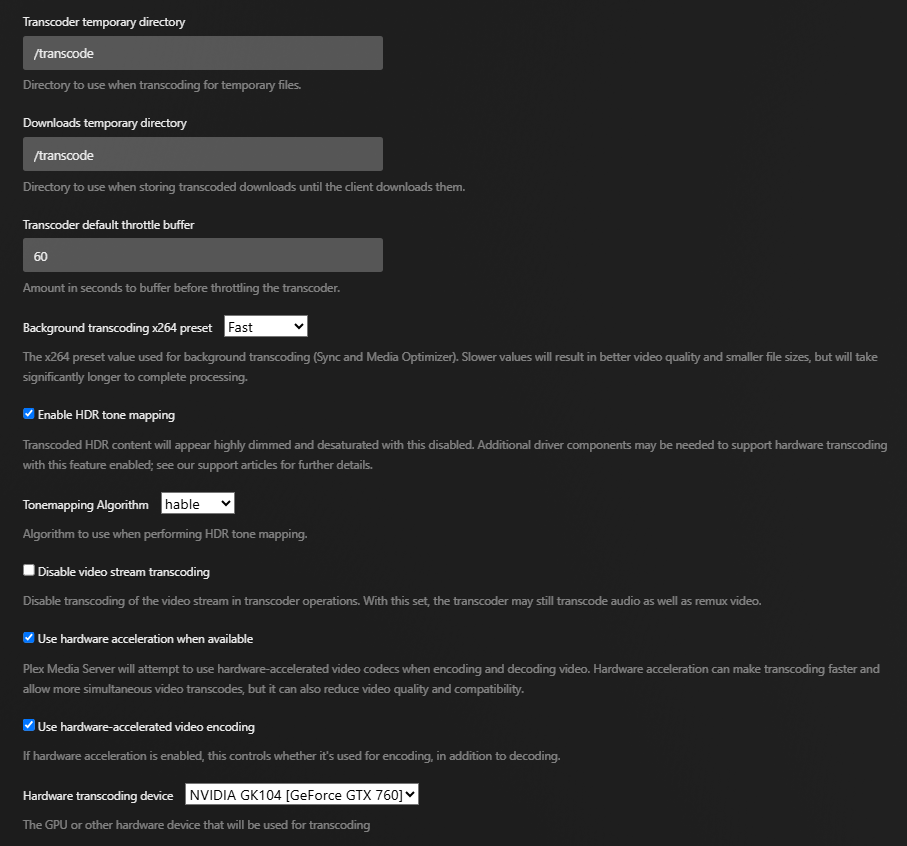
I enabled hardware accelerated transcoding in the Plex server settings and selected the appropriate GPU from the dropdown list, but there is no activity reported by the gpu during an active video transcode.

I assumed that it would just work since the nvidia drivers are correctly installed (according to nvidia-smi), and the fact that Plex discovered and correctly populated the card within the settings.

It may be that my GeForce GTX 760 does not support NVenc/NVdec, or, perhaps, related to docker not having access to the nvidia gpu, as mentioned here?
https://tizutech.com/nvidia-gpu-with-docker/
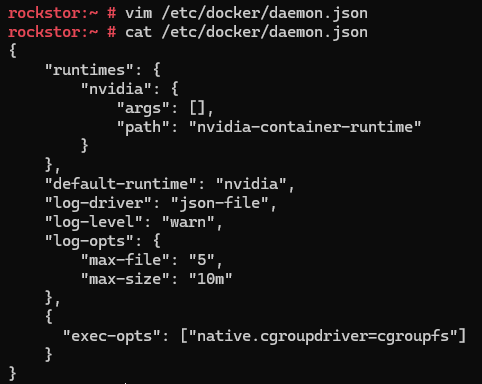
…it looks like docker is already configured to use the nvidia runtime.

/etc/docker/daemon.json

{
    "log-driver": "json-file",
    "log-level": "warn",
    "log-opts": {
        "max-file": "5",
        "max-size": "10m"
    },
    "runtimes": {
        "nvidia": {
            "args": [],
            "path": "nvidia-container-runtime"
        }
    }
}

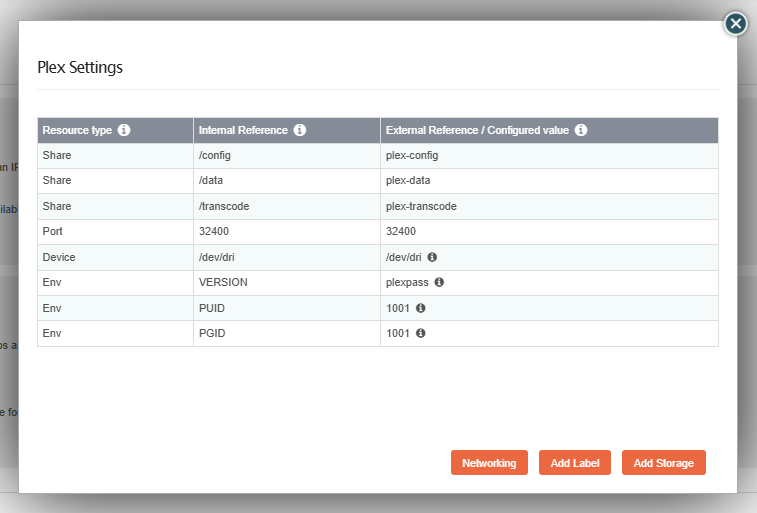
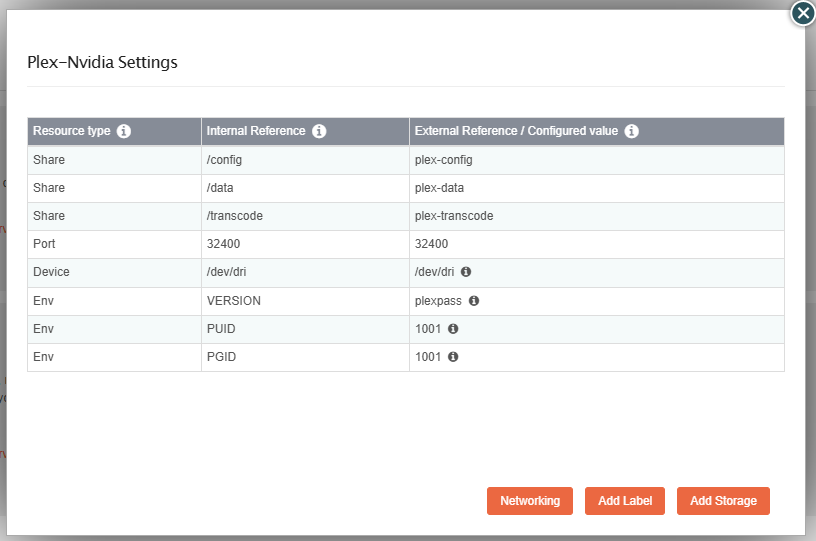
Plex Rockon:

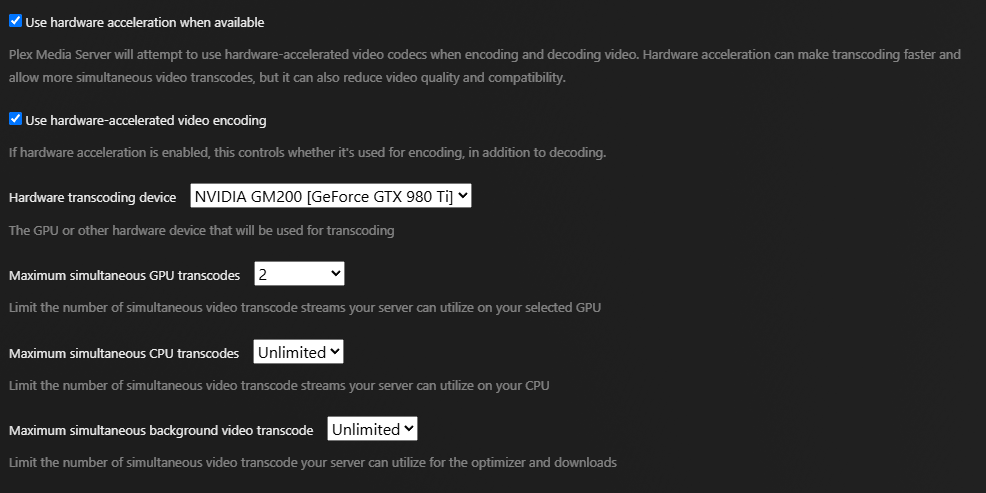
Hardware Accelerated Transcoding Enabled:

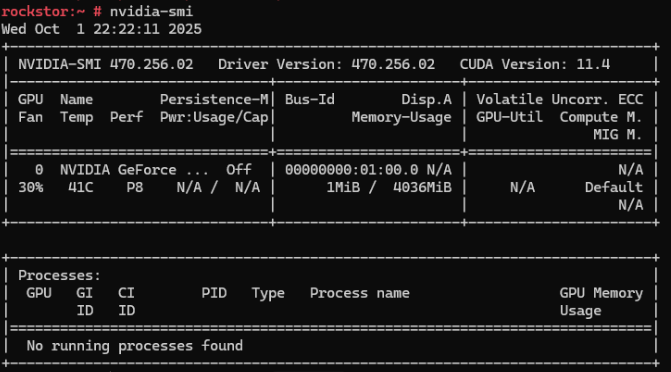
#nvidia-smi output shows no dedicated process while plex is actively transcoding a video:
nvidia-smi

@wwwizzarrdry, hello again. The Plex Rock-on was created with the Intel acceleration in mind. Since at this time there is no Rock-on functionality that allows for an optioning in this area (i.e. populate variables for nvidia but not for Intel or vice-versa) the nvidia option of the underlying image is not exposed. That is something that hopefully will be remedied in the future in the Rock-on design.

Take a look at the nvidia specific section on for the underlying container:
https://hub.docker.com/r/linuxserver/plex#nvidia

So the nvidia toolkit needs to be on the server (which you already seems to have installed correctly, using the link you posted above):
https://docs.nvidia.com/datacenter/cloud-native/container-toolkit/latest/install-guide.html

and then the container has to be started with the mentioned options. You could create your custom Rock-on definition that focuses on using the nvidia GPU. Have not tested this (since I don’t have a Rockstor with an nvidia setup at my disposal) but I imagine that a quick custom version could look like this(replacing the opts object with the below):

Before:

{
  "Plex": {
    "containers": {
      "plex-linuxserver.io": {
        "image": "linuxserver/plex",
        "opts": [
          [
            "--net=host",
            ""
          ]
        ],
        "launch_order": 1,
        "devices": {
          "/dev/dri": {
            "description": "optional device path for enabling Intel QuickSync (example: /dev/dri). Leave blank if not needed. Check CPU documentation at ark.intel.com to check for QuickSync support.",
            "label": "QuickSync device"
          }
        },
...

After:

{
  "Plex-nvidia": {
    "containers": {
      "plex-linuxserver.io.nvidia": {
        "image": "linuxserver/plex",
        "launch_order": 1,
        "opts": [
          [
            "--net=host",
            ""
          ],
          [
            "-e",
            "NVIDIA_VISIBLE_DEVICES=all"
          ]
        ],
            "cmd_arguments": [
                [
                    "--runtime=nvidia",
                    ""
                ]
            ],
...

(also create a different json filename e.g. plex-nvidia.json as to not confuse Rockstor when it ingests the definitions during a Rock-on refresh via the WebUI).

And to use it, you take a look here:

https://rockstor.com/docs/interface/overview.html#adding-your-own-rock-on

If you get it to work, you could consider adding it to the Rock-on repository over here (along with some documentation around the pre-requisites maybe):

2 Likes

Upgraded my GPU to a GeForce GTX 980 Ti

I created a local repository and added the config /opt/rockstor/rockons-metastore/plex-nvidia.json.

When I include either of the following lines, legacy or modern, the rock-on will install but the container exits with error code 127. Attempting to open the PlexUI just shows a 503 maintenance page. I’m not sure the cmd_arguments are necessary since we already configured docker to use the nvidia runtime in /etc/docker/daemon.json.

(Legacy)

"cmd_arguments": [
    [
        "--runtime=nvidia",
        ""
    ]
],

(Modern)

"cmd_arguments": [
    [
        "--gpus=all",
        ""
    ]
],

If I remove the cmd_arguments, everything installs and runs fine, except that no hw transcoding is offloaded to the GPU.

/opt/rockstor/rockons-metastore/plex-nvidia.json

{
    "Plex-Nvidia": {
        "containers": {
            "plex-linuxserver.io.nvidia": {
                "image": "linuxserver/plex",
                "opts": [
                    [
                        "--net=host",
                        ""
                    ],
                    [
                        "-e",
                        "NVIDIA_VISIBLE_DEVICES=all"
                    ]
                ],
                "launch_order": 1,
                "devices": {
                    "/dev/dri": {
                        "description": "optional device path for enabling Intel QuickSync (example: /dev/dri). Leave blank if not needed. Check CPU documentation at ark.intel.com to check for QuickSync support.",
                        "label": "QuickSync device"
                    }
                },
                "ports": {
                    "32400": {
                        "description": "WebUI port. Suggested default: 32400",
                        "host_default": 32400,
                        "label": "WebUI port",
                        "ui": true
                    }
                },
                "volumes": {
                    "/config": {
                        "description": "Choose a Share for Plex configuration. E.g.: create a Share called plex-config for this purpose alone. It is important that the owner/group specified later have full access to the share (R/W/E)",
                        "label": "Config Storage"
                    },
                    "/data": {
                        "description": "Choose a Share for Plex content (your media). E.g.: create a Share called plex-data for this purpose alone. You can also assign other media Shares on the system after installation. This share needs to have at least Read/Execute access for the user and group specified later",
                        "label": "Data Storage"
                    }
                },
                "cmd_arguments": [
                    [
                        "--runtime=nvidia",
                        ""
                    ]
                ],
                "environment": {
                    "VERSION": {
                        "description": "Choose version of plex: Unless you know which version to try, just type latest",
                        "label": "VERSION",
                        "index": 1
                    },
                    "PUID": {
                        "description": "Enter a valid UID to run Plex with. It must have full permissions to all Shares mapped in the previous step.",
                        "label": "UID",
                        "index": 2
                    },
                    "PGID": {
                        "description": "Enter a valid GID to use along with the above UID. It (or the above UID) must have full permissions to all Shares mapped in the previous step.",
                        "label": "GID",
                        "index": 3
                    }
                }
            }
        },
        "description": "Organize and stream your personal media collection of movies, TV, music, and photos anywhere on all your devices. This rock-on supports hardware transcoding (optional) via Intel QuickSync -- see <a href='https://ark.intel.com/content/www/us/en/ark/search/featurefilter.html?productType=873&0_QuickSyncVideo=True' target='_blank'>Intel ark</a> to check your processor's compatibility.<p>Additional <a href='http://rockstor.com/docs/docker-based-rock-ons/plex-media-server.html#plex-server-rock-on' target='_blank'>documentation</a> is available for this rock-on.</p><p>Based on a custom docker image: <a href='https://hub.docker.com/r/linuxserver/plex' target='_blank'>https://hub.docker.com/r/linuxserver/plex</a>, available for amd64 and arm64 architecture.</p>",
        "more_info": "<h4>Adding more media to Plex</h4><p>First, add the share(s) containing your additional media to this rock-on using its settings wizard. Then, from Plex webUI, you can add this/these share(s) and re-index your library. See <a href='http://rockstor.com/docs/docker-based-rock-ons/plex-media-server.html#adding-shares-to-plex' target='_blank'>Rockstor's documentation</a> for detailed instructions.</p> <h4>Hardware transcoding using Intel QuickSync</h4>If you have a compatible processor and filled the <em>QuickSync device</em> field during the rock-on installation, please note that you also need to add a dedicated share (named <em>plex-transcoding</em>, for instance) mapped as <code>/transcode</code> that will be used for transcoding only. Then, from Plex WebUI, you can update the <strong>transcode</strong> directory setting.</p>",
        "ui": {
            "slug": "web"
        },
        "volume_add_support": true,
        "website": "https://www.plex.tv",
        "version": "1.1"
    }
}  

As far as I know, in the docker daemon.json the runtimes provides alternatives to the default usage of dockerd. So, if a container needs to use something else (like your nividia GPU) the docker run command needs to know about it, hence the command option.

I also assume, you did not populate the /dev/dri option, since that focuses on using the Intel QuickSync capability, though I have no idea if that causes any issue.

However, I have always found it tricky on how to define it in the Rock-on correctly. Since I couldn’t test it myself I might have given you the incorrect syntax

Could you include the cmd once more in the json file and then take a look at the docker logs with

docker logs plex-linuxserver.io.nvidia

that might give some insight in what is happening inside the container.

Also after the container exits, can you take a look at the rockstor logs with:

tail -n200 /opt/rockstor/var/log/rockstor.log

that should also give some more insights. If we’re lucky it will spell out the docker run command it tried to run and give some more pointers on why it didn’t work.

2 Likes

Running the sample workload fails when the --runtime flag is used, but it runs fine when only supplying the --gpus all flag.

docker run --rm --runtime=nvidia --gpus all ubuntu nvidia-smi
docker: Error response from daemon: unknown or invalid runtime name: nvidia

cat /etc/nvidia-container-runtime/config.toml
I noticed that the only runtimes listed are runtimes = ["docker-runc", "runc", "crun"]

#accept-nvidia-visible-devices-as-volume-mounts = false
#accept-nvidia-visible-devices-envvar-when-unprivileged = true
disable-require = false
supported-driver-capabilities = "compat32,compute,display,graphics,ngx,utility,video"
#swarm-resource = "DOCKER_RESOURCE_GPU"

[nvidia-container-cli]
#debug = "/var/log/nvidia-container-toolkit.log"
environment = []
#ldcache = "/etc/ld.so.cache"
ldconfig = "@/sbin/ldconfig"
load-kmods = true
no-cgroups = true
#path = "/usr/bin/nvidia-container-cli"
#root = "/run/nvidia/driver"
user = "root:video"

[nvidia-container-runtime]
#debug = "/var/log/nvidia-container-runtime.log"
log-level = "info"
mode = "auto"
runtimes = ["docker-runc", "runc", "crun"]

[nvidia-container-runtime.modes]

[nvidia-container-runtime.modes.cdi]
annotation-prefixes = ["cdi.k8s.io/"]
default-kind = "nvidia.com/gpu"
spec-dirs = ["/etc/cdi", "/var/run/cdi"]

[nvidia-container-runtime.modes.csv]
mount-spec-path = "/etc/nvidia-container-runtime/host-files-for-container.d"

[nvidia-container-runtime.modes.legacy]
cuda-compat-mode = "ldconfig"

[nvidia-container-runtime-hook]
path = "nvidia-container-runtime-hook"
skip-mode-detection = false

[nvidia-ctk]
path = "nvidia-ctk"
2 Likes

did you run the nvidia-ctk command after installing the runtime?

I recently had the same problem and had to run the following

nvidia-ctk runtime configure --runtime=docker
systemctl restart docker
nvidia-ctk runtime configure --runtime=containerd
systemctl restart containerd

(you might have to restart docker one more time after the containerd changes to reload all of your containers)

this created a new runtime called io.containerd.runc.v2 on my system which is then passed as the runtime. This is the test command to make sure a container can reach the nvidia hardware:
docker run --rm --runtime=io.containerd.runc.v2 --gpus all ubuntu nvidia-smi

3 Likes

— RESOLVED —
Thank you to @Hooverdan and @criddle for contributing your ideas. It’s working now.

The key was to completely remove the cmd_arguments section from the rock-on config. Instead, i added both --gpus=all and -e NVIDIA_VISIBLE_DEVICES=all to the opts section of the config and everything worked. See below for the long of it all.

For anyone visiting this topic in the future, here is a bunch of info on how I got Nvidia hardware accelerated transcoding working on my server.
It should mostly be in order of operation, but first, some useful websites to reference:
https://www.nvidia.com/en-us/drivers/details/254665/
https://en.opensuse.org/SDB:NVIDIA_drivers
https://developer.nvidia.com/video-encode-decode-support-matrix

1. Add Nvidia Repo

zypper addrepo --refresh https://download.nvidia.com/opensuse/leap/15.6/ nvidia

2. Search Nvidia Drivers
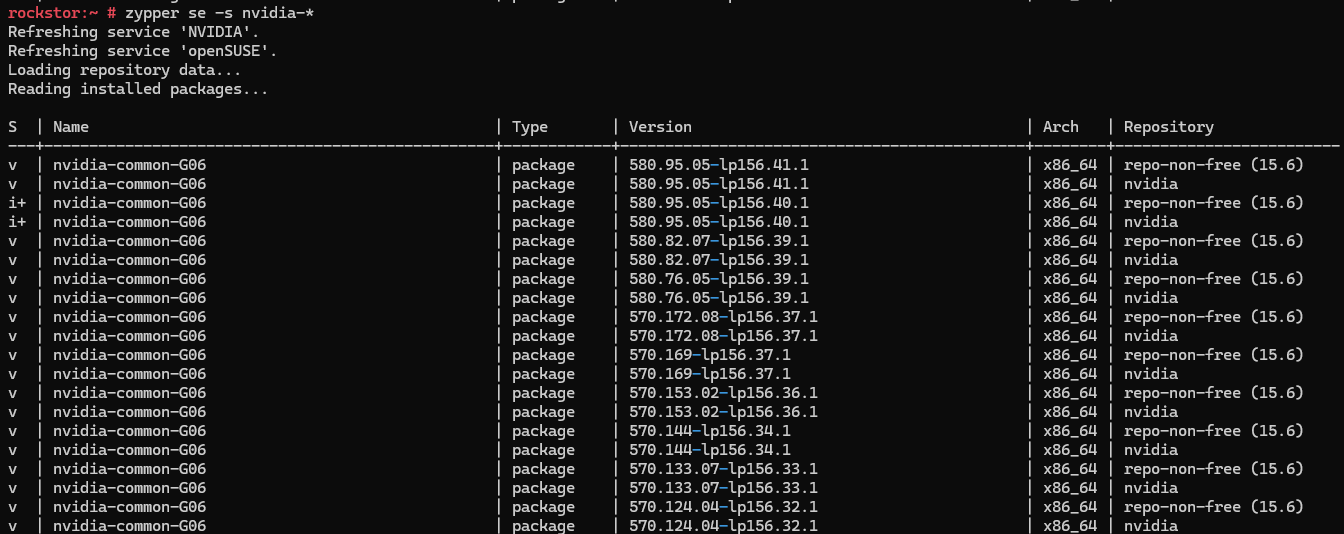
Use the nvidia driver details webpage I posted to find which version of the drivers to install. For the GTX 980 Ti we want Linux x64 (AMD64/EM64T) Display Driver 580.95.05.

If you don’t know which packages to install, do a zypper search to find your driver version.

zypper se -s x11-video-nvidia*G0* nvidia-video-G0* nvidia-gl*G0* nvidia-compute*G0* nvidia-compute-utils-G0*

3. Install Drivers and nvidia-docker2
*I have no idea which drivers are required so I installed the kitchen sink…

$ zypper --gpg-auto-import-keys install  nvidia-driver-G06-kmp-default nvidia-driver-G06-kmp-meta nvidia-userspace-meta-G06 nvidia-common-G06 nvidia-video-G06 nvidia-gl-G06 nvidia-compute-utils-G06 nvidia-compute-G06 nvidia-persistenced nvidia-modprobe nvidia-container-toolkit nvidia-container-toolkit-base nvidia-container-runtime libnvidia-container-tools libnvidia-container1 nvidia-docker2

Make sure your kernel version matches the client version

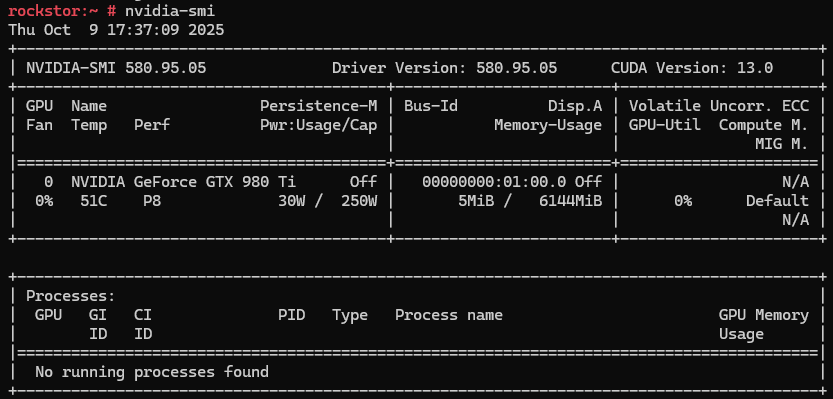
cat /proc/driver/nvidia/version

nvidia-smi

4. Configure nvidia-container-runtime

nvidia-ctk runtime configure --runtime=docker
nvidia-ctk runtime configure --runtime=containerd
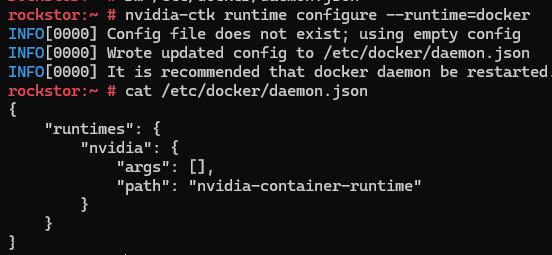
step4

*I edited mine with the following:
step4a

Restart Docker

$ systemctl restart docker
$ systemctl restart containerd

5. Check Nvidia Container Version

nvidia-container-cli -V

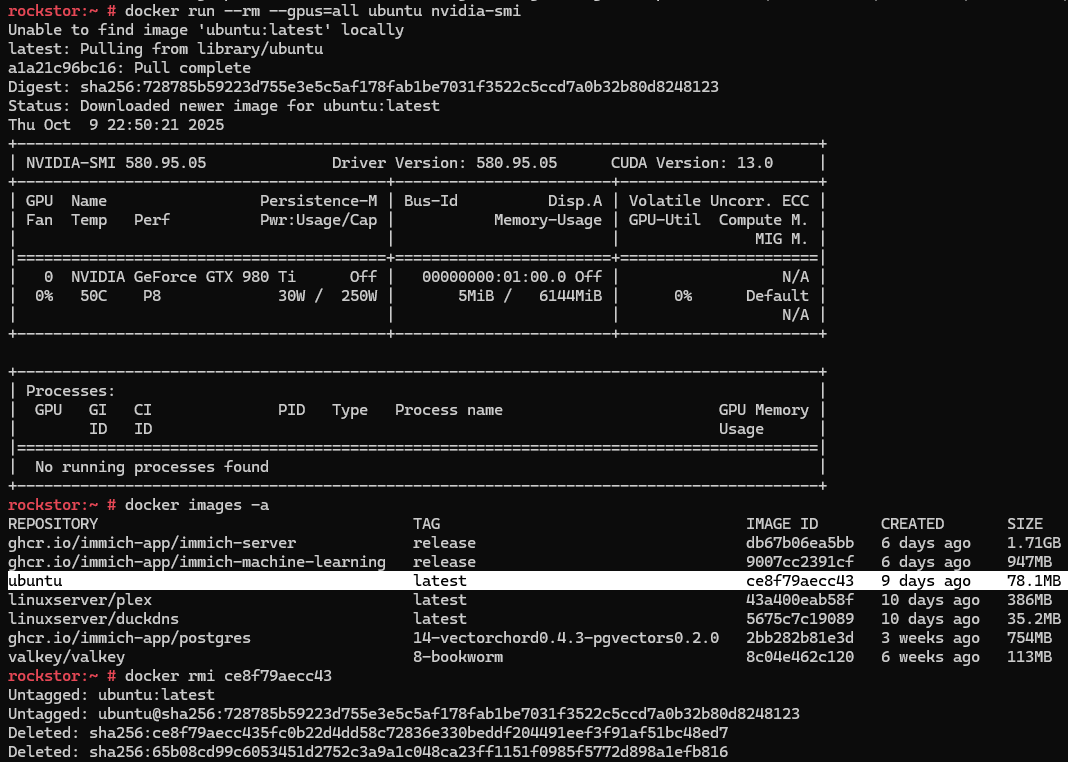
6. Now, run a sample workload
You should get the nvidia-smi output with no errors.

docker run --rm --gpus=all ubuntu nvidia-smi

Reboot (optional)
Out of habit, I always reboot after installing graphics drivers.

reboot now -h

7. Next, lets create a custom Rock-on repository for our Nvidia-Enabled Plex Image
Note: If you don’t want to mess around with managing ports, it works best if you stop and uninstall your existing Plex rock-on via the webUI if applicable.
:link: plex-nvidia.json

vim /opt/rockstor/rockons-metastore/plex-nvidia.json
{
  "Plex-Nvidia": {
    "containers": {
      "plex-linuxserver.io.nvidia": {
        "image": "linuxserver/plex",
        "opts": [
          [
            "--net=host",
            ""
          ],
          [
            "--gpus=all",
            ""
          ],
          [
            "-e",
            "NVIDIA_VISIBLE_DEVICES=all"
          ]
        ],
        "launch_order": 1,
        "devices": {
          "/dev/dri": {
            "description": "optional device path for enabling Intel QuickSync (example: /dev/dri). Leave blank if not needed. Check CPU documentation at ark.intel.com to check for QuickSync support.",
            "label": "QuickSync device"
          }
        },
        "ports": {
          "32400": {
            "description": "WebUI port. Suggested default: 32400",
            "host_default": 32400,
            "label": "WebUI port",
            "ui": true
          }
        },
        "volumes": {
          "/config": {
            "description": "Choose a Share for Plex configuration. E.g.: create a Share called plex-config for this purpose alone. It is important that the owner/group specified later have full access to the share (R/W/E)",
            "label": "Config Storage"
          },
          "/data": {
            "description": "Choose a Share for Plex content (your media). E.g.: create a Share called plex-data for this purpose alone. You can also assign other media Shares on the system after installation. This share needs to have at least Read/Execute access for the user and group specified later",
            "label": "Data Storage"
          }
        },
        "environment": {
          "VERSION": {
            "description": "Choose version of plex: Unless you know which version to try, just type latest",
            "label": "VERSION",
            "index": 1
          },
          "PUID": {
            "description": "Enter a valid UID to run Plex with. It must have full permissions to all Shares mapped in the previous step.",
            "label": "UID",
            "index": 2
          },
          "PGID": {
            "description": "Enter a valid GID to use along with the above UID. It (or the above UID) must have full permissions to all Shares mapped in the previous step.",
            "label": "GID",
            "index": 3
          }
        }
      }
    },
    "description": "Organize and stream your personal media collection of movies, TV, music, and photos anywhere on all your devices. This rock-on supports hardware transcoding (optional) via Intel QuickSync -- see <a href='https://ark.intel.com/content/www/us/en/ark/search/featurefilter.html?productType=873&0_QuickSyncVideo=True' target='_blank'>Intel ark</a> to check your processor's compatibility.<p>Additional <a href='http://rockstor.com/docs/docker-based-rock-ons/plex-media-server.html#plex-server-rock-on' target='_blank'>documentation</a> is available for this rock-on.</p><p>Based on a custom docker image: <a href='https://hub.docker.com/r/linuxserver/plex' target='_blank'>https://hub.docker.com/r/linuxserver/plex</a>, available for amd64 and arm64 architecture.</p>",
    "more_info": "<h4>Adding more media to Plex</h4><p>First, add the share(s) containing your additional media to this rock-on using its settings wizard. Then, from Plex webUI, you can add this/these share(s) and re-index your library. See <a href='http://rockstor.com/docs/docker-based-rock-ons/plex-media-server.html#adding-shares-to-plex' target='_blank'>Rockstor's documentation</a> for detailed instructions.</p> <h4>Hardware transcoding using Intel QuickSync</h4>If you have a compatible processor and filled the <em>QuickSync device</em> field during the rock-on installation, please note that you also need to add a dedicated share (named <em>plex-transcoding</em>, for instance) mapped as <code>/transcode</code> that will be used for transcoding only. Then, from Plex WebUI, you can update the <strong>transcode</strong> directory setting.</p>",
    "ui": {                                                                                                                                                                                                            "slug": "web"
    },
    "volume_add_support": true,
    "website": "https://www.plex.tv",
    "version": "1.1"
  }
}

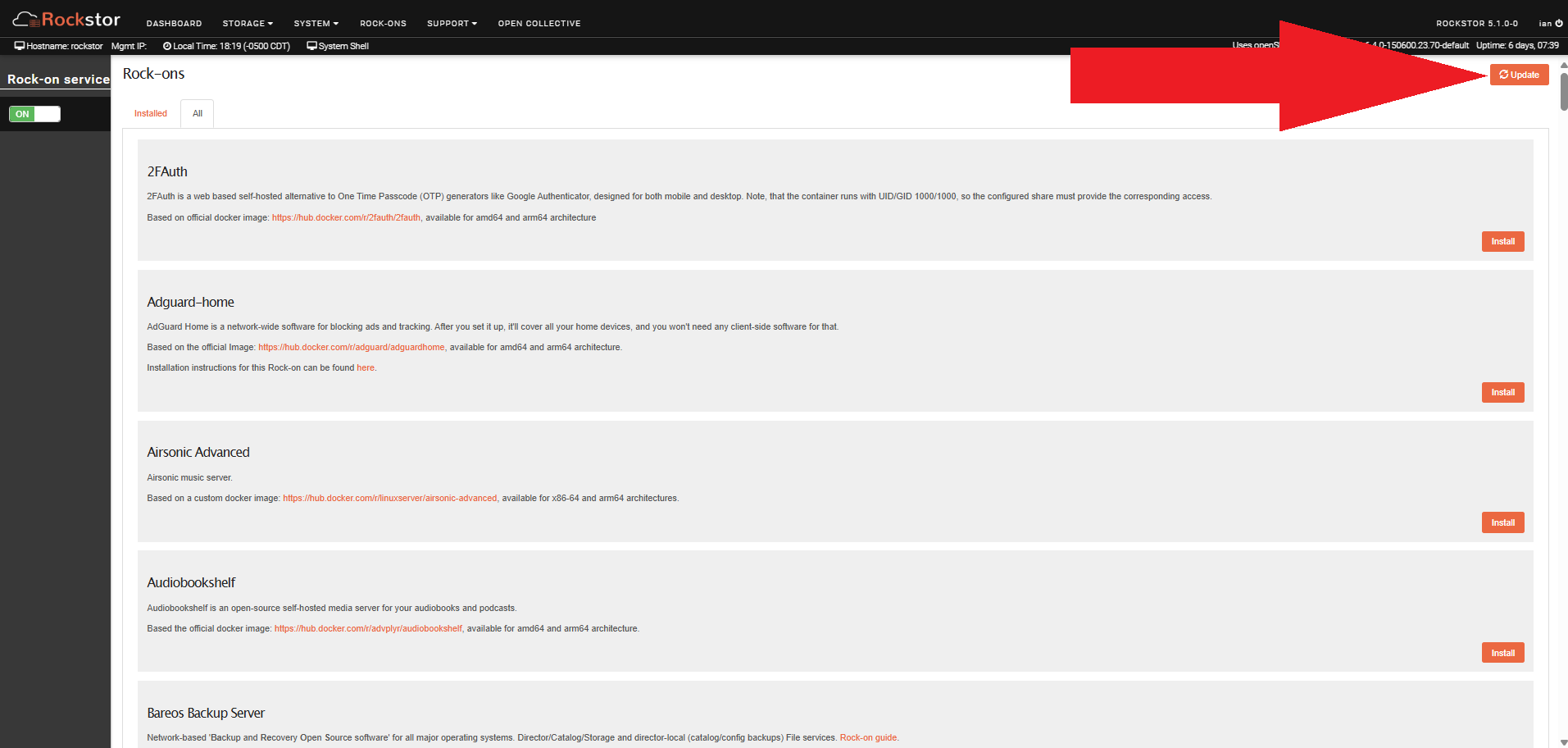
8. Now that we have our custom plex config, use the rockons webUI to update the Rock-on Registry
Once the update completes, find your local Plex-Nvidia rock-on in the list and click Install

  • Note, in this build, you first enter your /config, and /data storage locations. Let the image install. Then, once plex is running, Stop the rock-on, click the Wrench icon next to the container in the webUI, and click Add Storage. This is where you add your storage location for /transcode. Remember to add this location to the plex settings under the transcode tab.
  • Note, during my rock-on setup I had to enter the QuickSync device /dev/dri/ in order for the GPU to populate in the dropdown menu inside the Plex settings page under the Transcoder tab.

*Add your transcode directory in the plex settings. I used an ssd for faster Read/Writes:
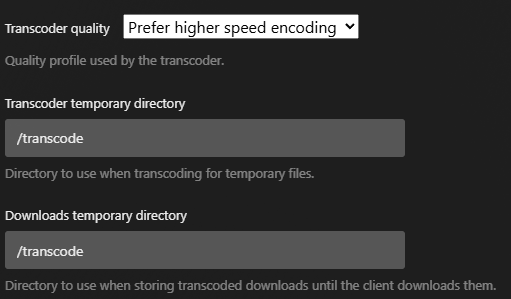
transcode_dir

*According to nvidia’s video encode/decode support matrix, my GTX 980 Ti supports 2 simultaneous nv encodes, so I updated my plex settings accordingly:


Setup Complete
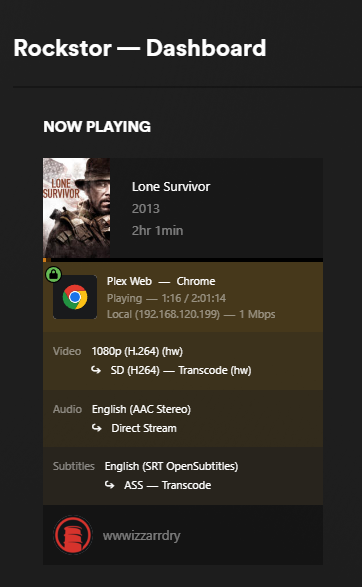
Now you should be able to play a video, force a transcode conversion, and then check the Plex Dashboard to ensure the magic Transcode(hw) appears in the stream info.

Monitor GPU activity with:

watch -n 2 'nvidia-smi'

Useful hardware queries:

  • nvidia-smi --query-gpu=gpu_name,gpu_uuid --format=csv
  • nvidia-smi -a
  • lspci | grep VGA
  • lscpu | grep Arch
  • hwinfo --gfxcard | grep Model
  • hwinfo --arch
  • inxi -Ga
4 Likes

@wwwizzarrdry that’s excellent news!!!

Thanks for documenting your path to success here.

If you feel adventurous, you could publish your nvidia plex version to the rockon-registry, and take your how-to and add it as as a write-up in the Rockstor documentation repository so it could become part of the official documentation (and be referenced in the Rock-ons description.

2 Likes

That would probably be helpful for some users down the road. I want to see how everything behaves over a couple of automated watchtower upgrades. If everything keeps chugging along, I’ll look into adding it to the official repo.

3 Likes