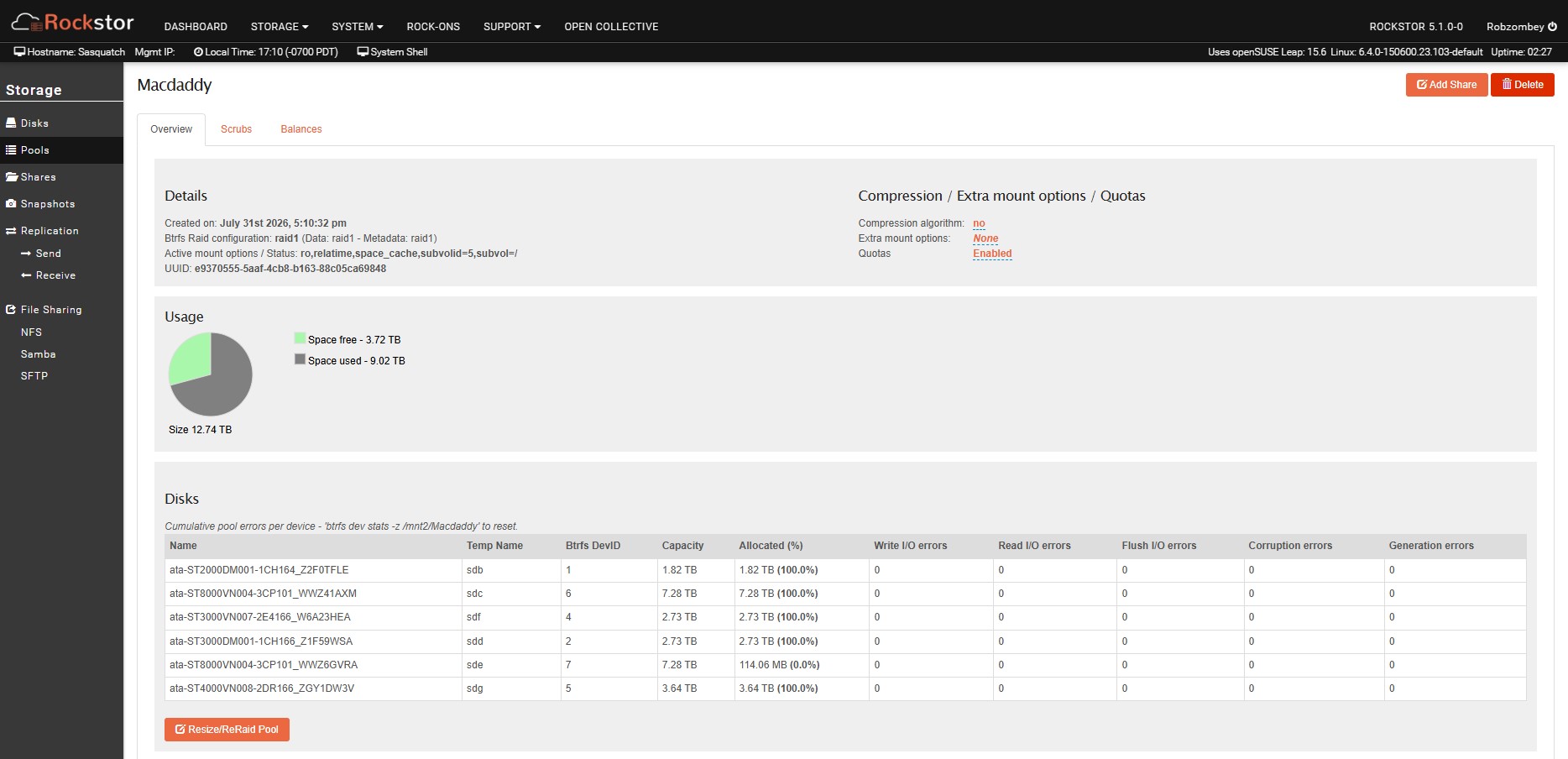
Adding a new drive to the pool, the pool is now read-only.

[Please complete the below template with details of the problem reported on your Web-UI. Be as detailed as possible. Community members, including developers, shall try and help. Thanks for your time in reporting this issue! We recommend purchasing commercial support for expedited support directly from the developers.]

Brief description of the problem

After adding a new 8Tb drive to the Pool caused the Pool to be immediately changed to read-only.

Detailed step by step instructions to reproduce the problem

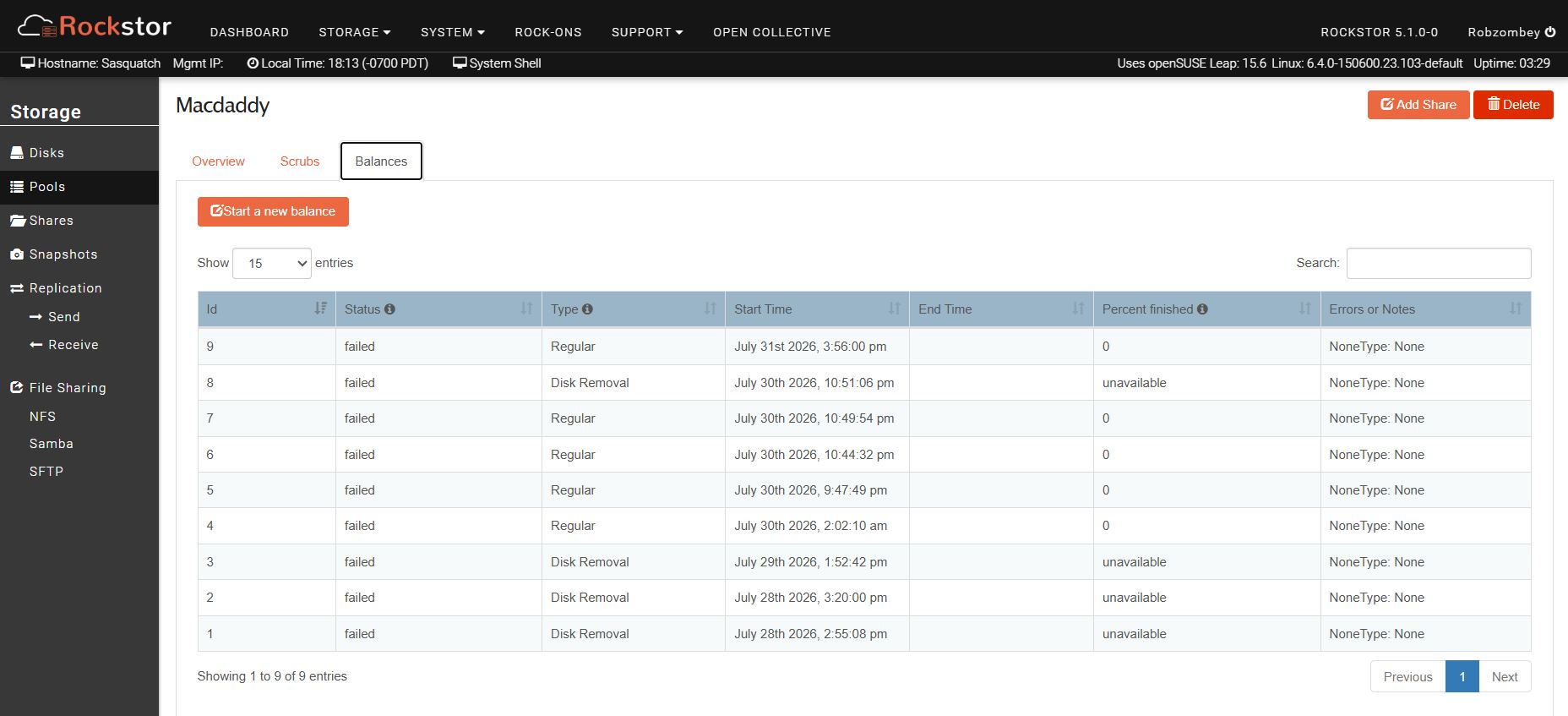
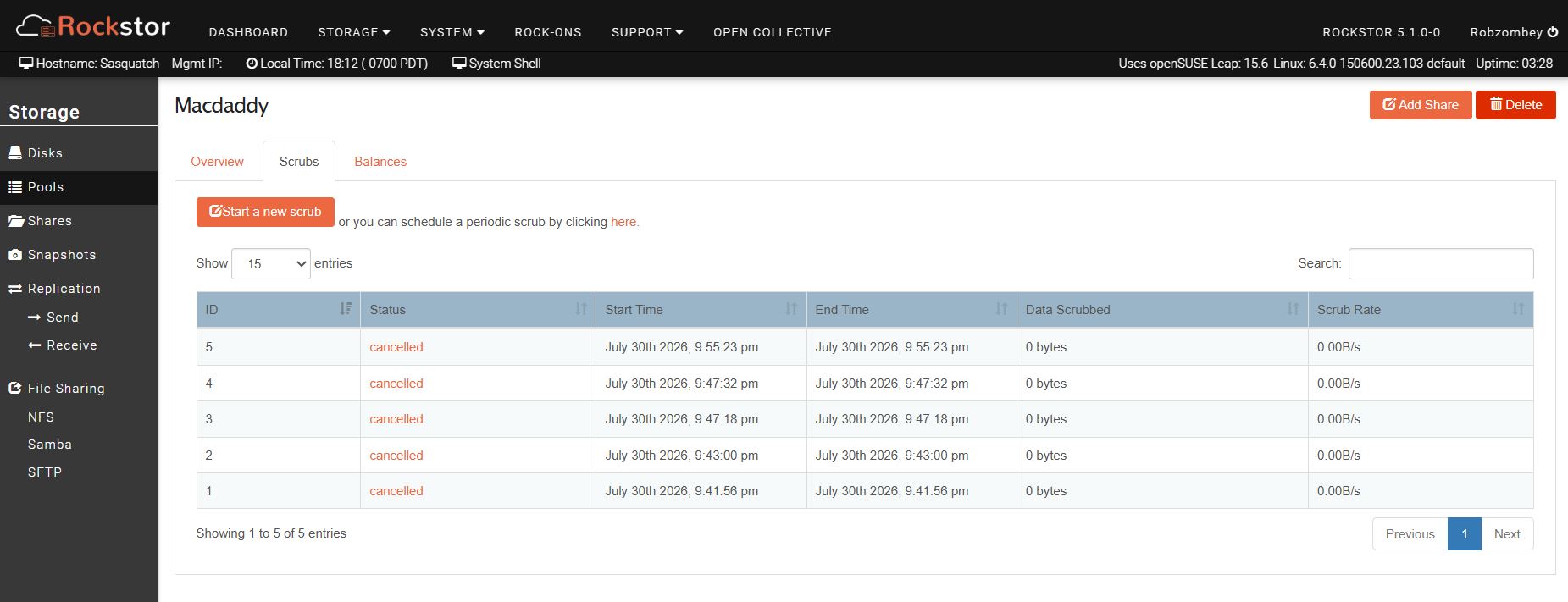
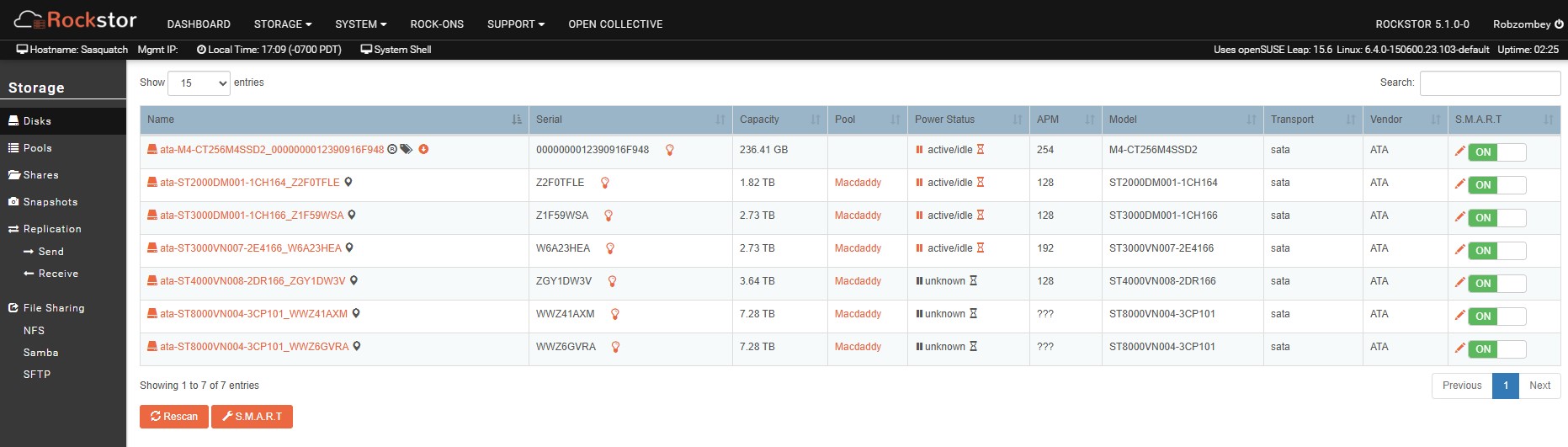
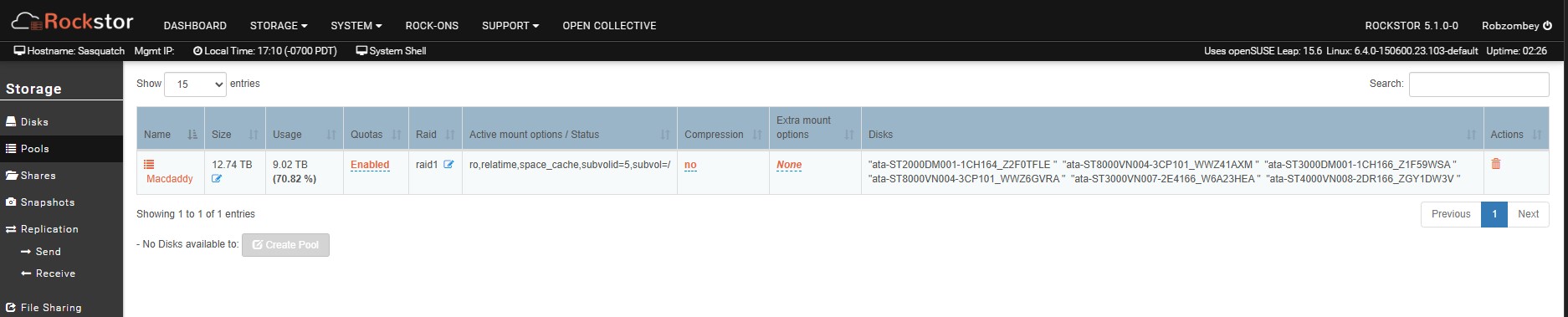
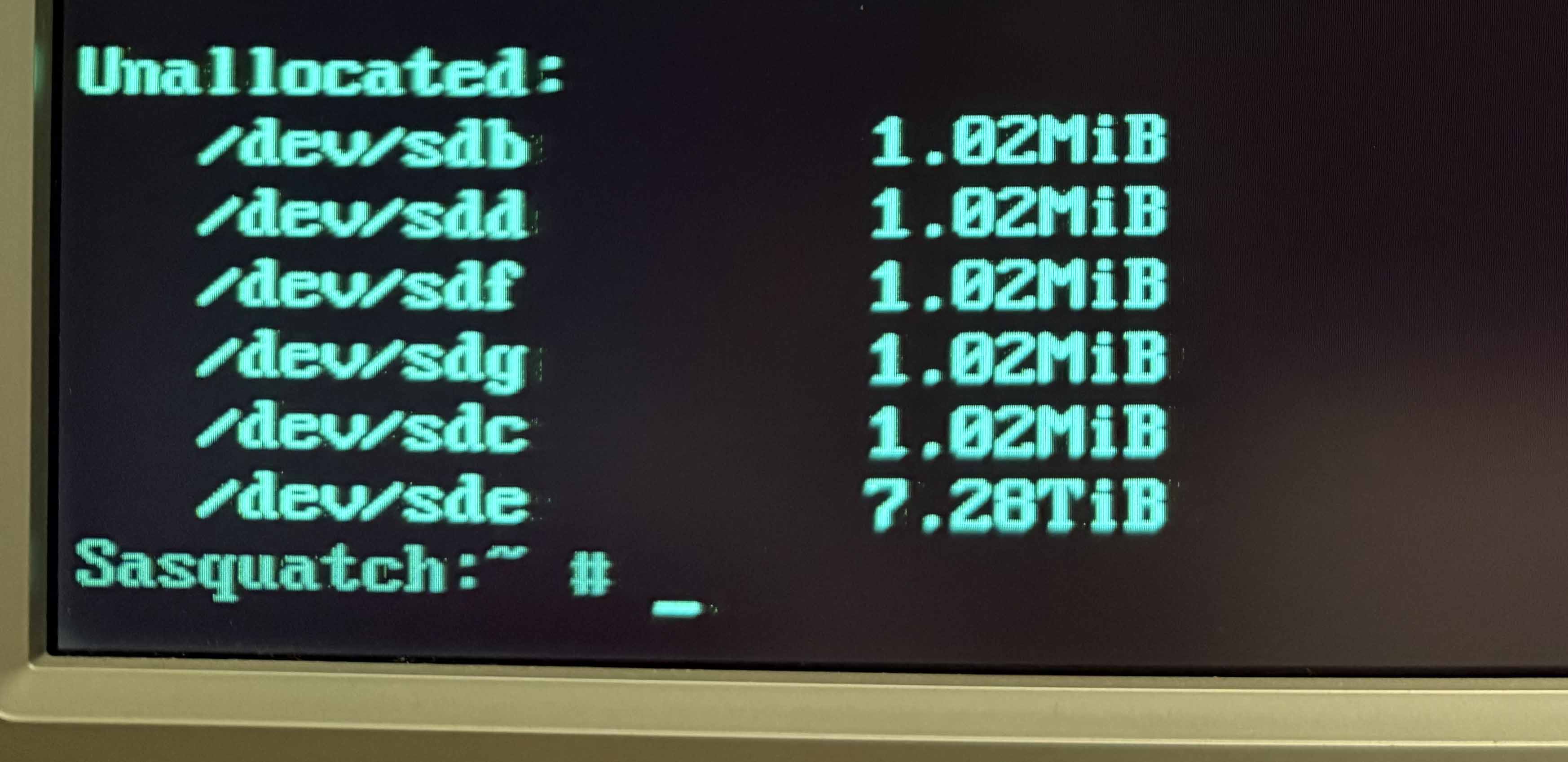
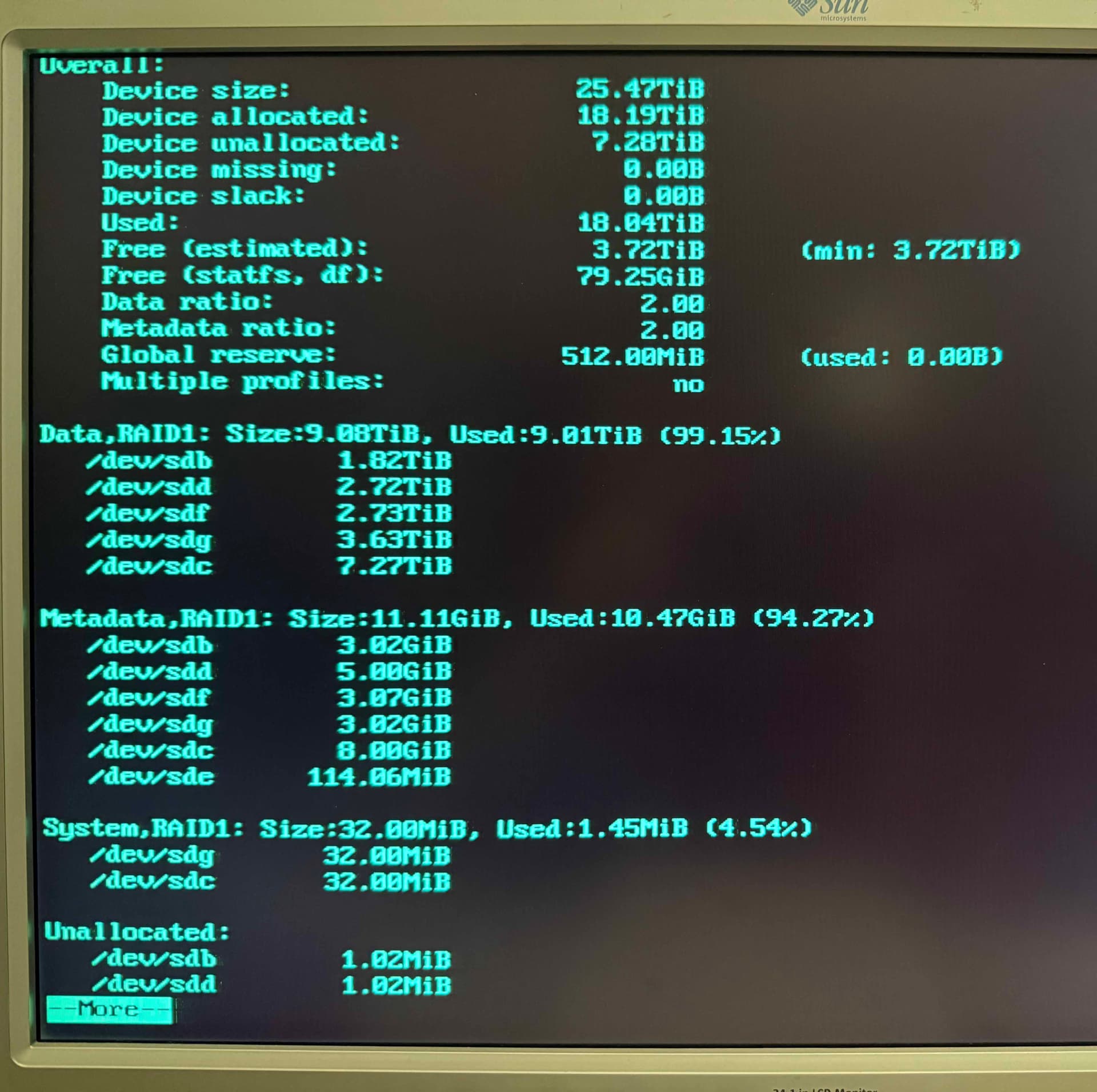
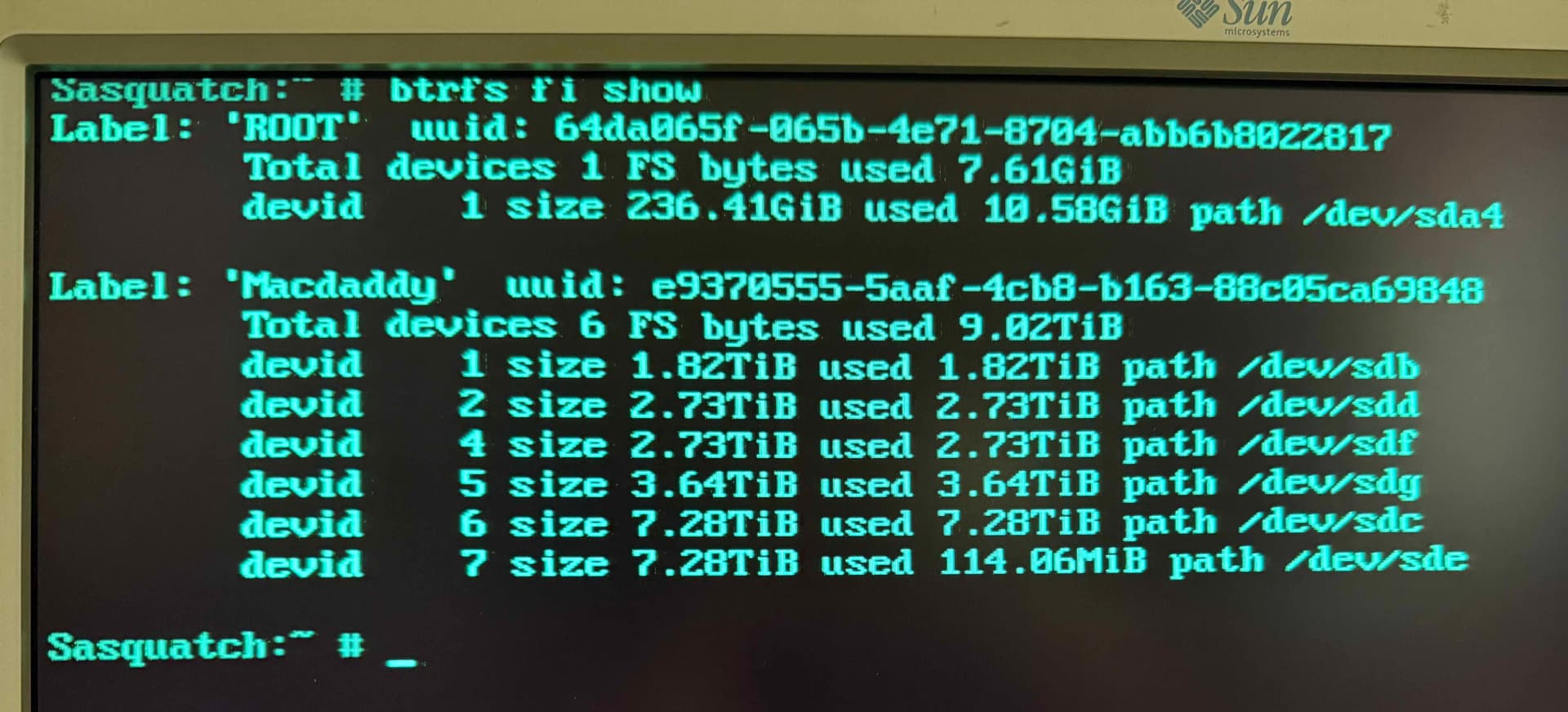
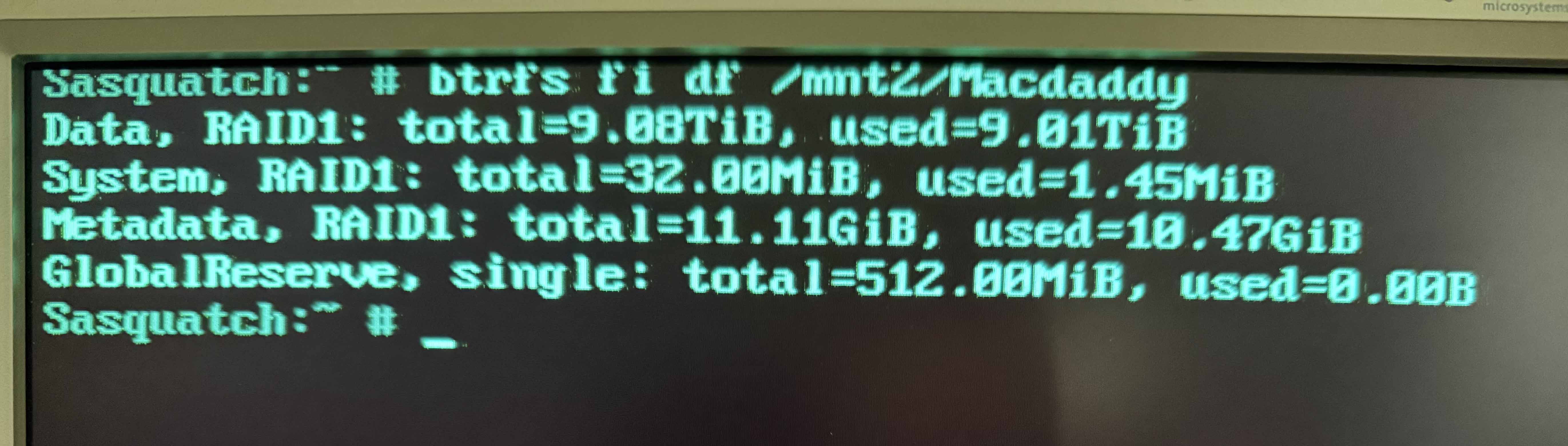
First and foremost, I am not a guru, so it might take some generic terms to complete this request. I added a new 8Tb drive to my Pool to increase capacity as it was running out of room. After adding the drive, I updated the Rockstor Install from Rockstor-Leap15.6-generic.x86_64-5.0.9-0 to the latest Rockstor-Leap15.6-generic.x86_64-5.1.0-0 without noticing any errors with the new disk install. But after configuring the WebUI, adding the Pool and Shares, I found that the Pool had been changed to read-only. I still have access to all of the data but cannot change or add any data in the Pool. Any actions to remove the new disk or re-size, balance or scrub is met with the same error, basically it says that there is no space left. In looking at the Pool Info in the WebUI, the new 8Tb (/sde) disk is basically showing as 0.0% allocated. So I am assuming something went wrong with adding it initially. The Remove Disk and Re-Raid did not work but also did not show any error windows.

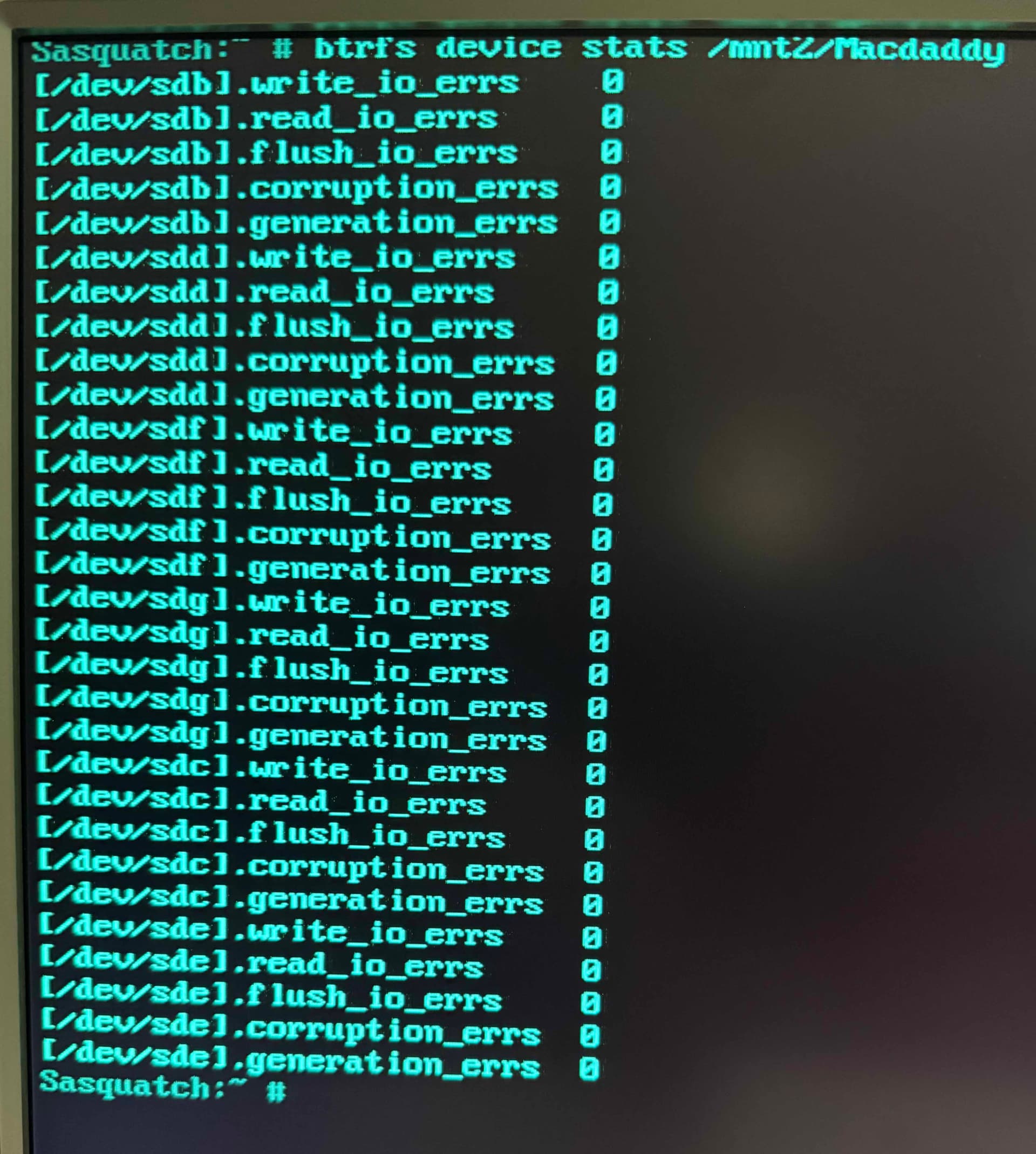
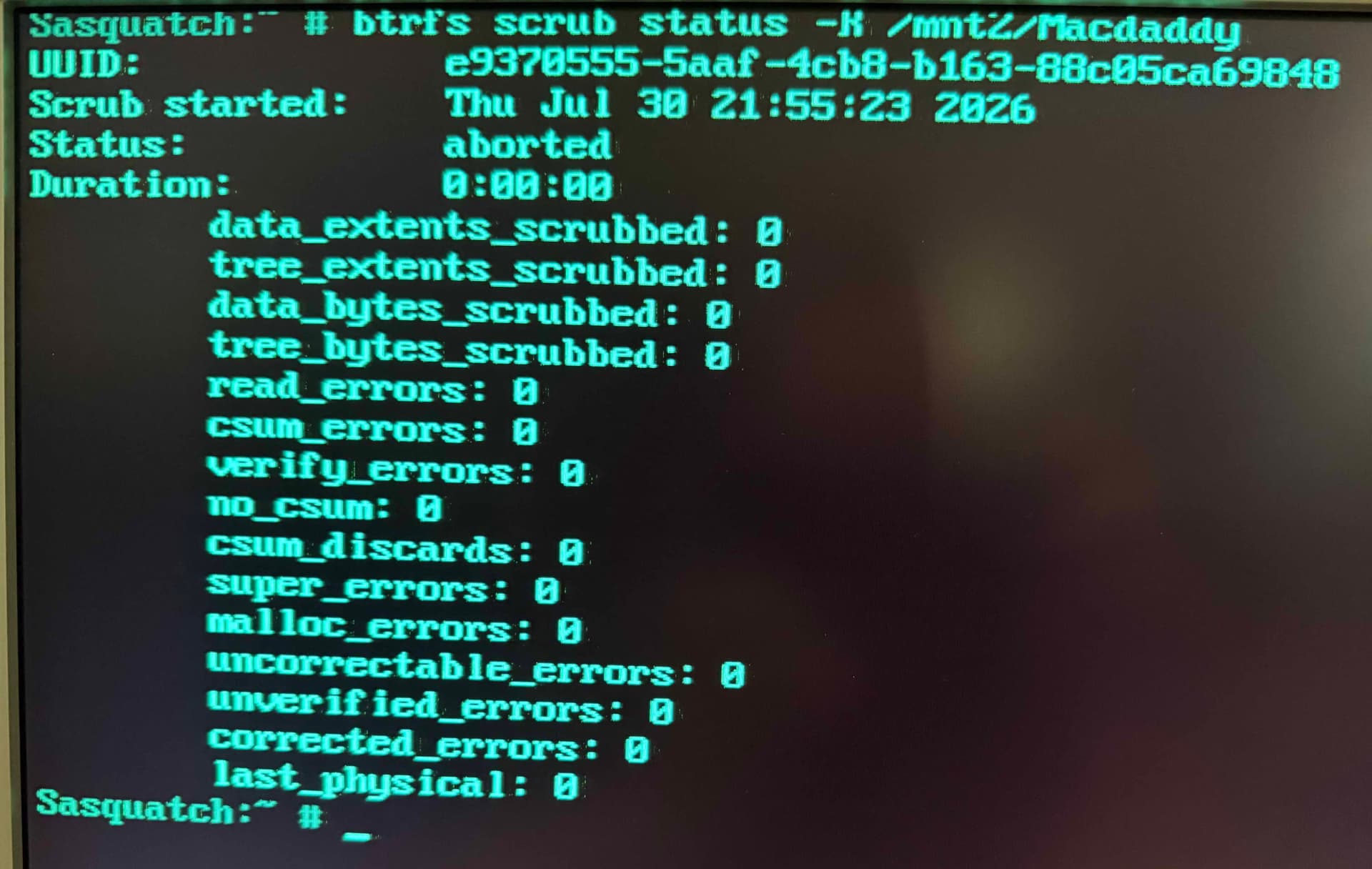
I am attaching the WebUI and CLI screenshots to the case. I have the Rockstor Logs and Dmesg Log as well if needed, just need to know how to attach them here.

Is there anything I can do to remove the disk or force a re-balance to get the disk working correctly in the Pool?

Thanks, Rob.

Web-UI screenshot
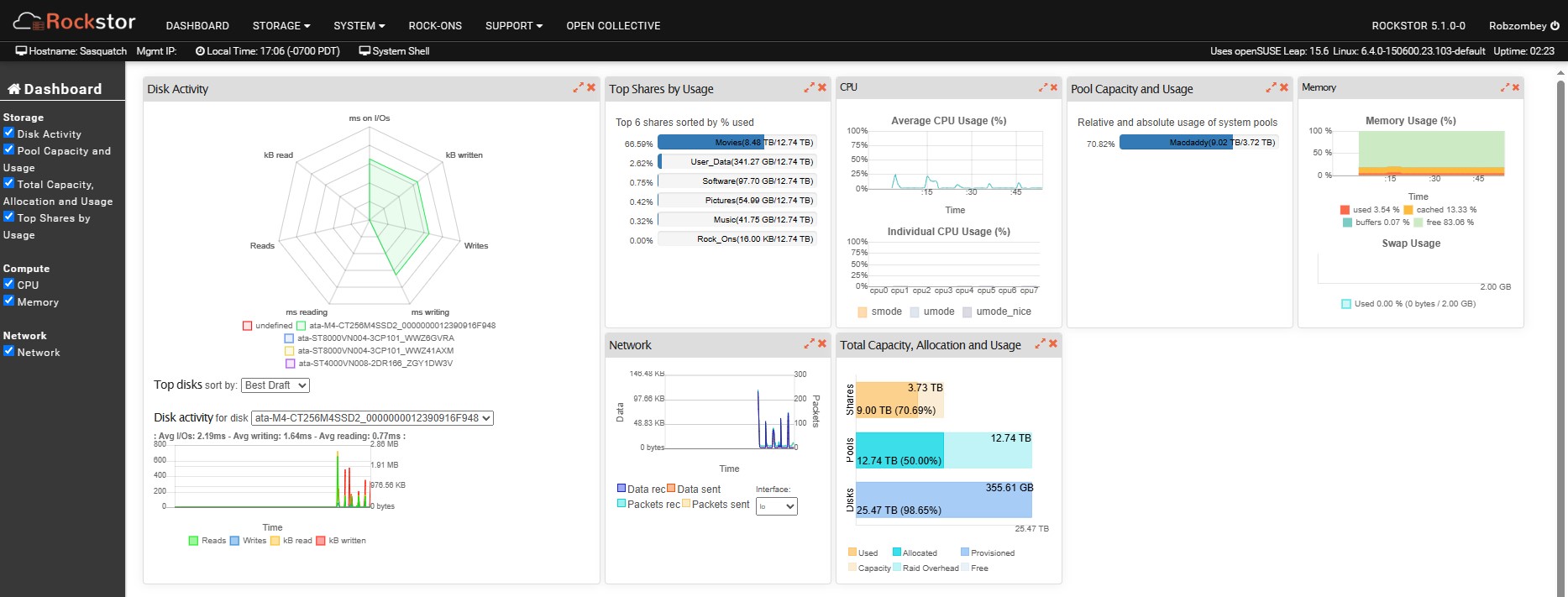
WebUI_Version

Error Traceback provided on the Web-UI

[paste here]
If I’m not mistaken, it seems that the devices are pretty much full, which would explain why it was forced into read-only mode by the kernel. I am surprised that you were able to add the device in that mode (but maybe it just went into that right after you added it).

I think in order to be able to do a balancing, you need to force it into the read/write mode if you can. You probably have to do that via the command line (assuming you’re logged in as root, otherwise you need to, of course, use sudo):

mount -o remount,rw,clear_cache,skip_balance /mnt2/Macdaddy

then you could start a balance, but not a full one. See whether you can start with a smaller one, like:

btrfs balance start -dusage=10 /mnt2/Macdaddy

or smaller. If that goes through, you can start another one that e.g. has -dusage=20 and then one with -dusage=30. If your other drives start to show more free space after those, you could probably risk running the full balance process, or continue to up the balance filter in 10 or 20 increments until you reach 100.

I would be remiss if I didn’t say that you should probably back up the data before you do any of this.

If the rw remount fails, may be you can post the tail of your dmesg log, the last 50 lines or so (I think) would be sufficient to highlight any other error messages you might be getting.

1 Like

Hi Hooverdan,

First, Thank You for responding to my emergency. I know that you are correct about the disks being full, that was most likely my first mistake by not watching how much space I had before performing anything.

Now after trying your mount suggestion:

 mount -o remount,rw,clear_cache,skip_balance /mnt2/Macdaddy

it returns an error:

 Remounting read-write after error is not allowed.

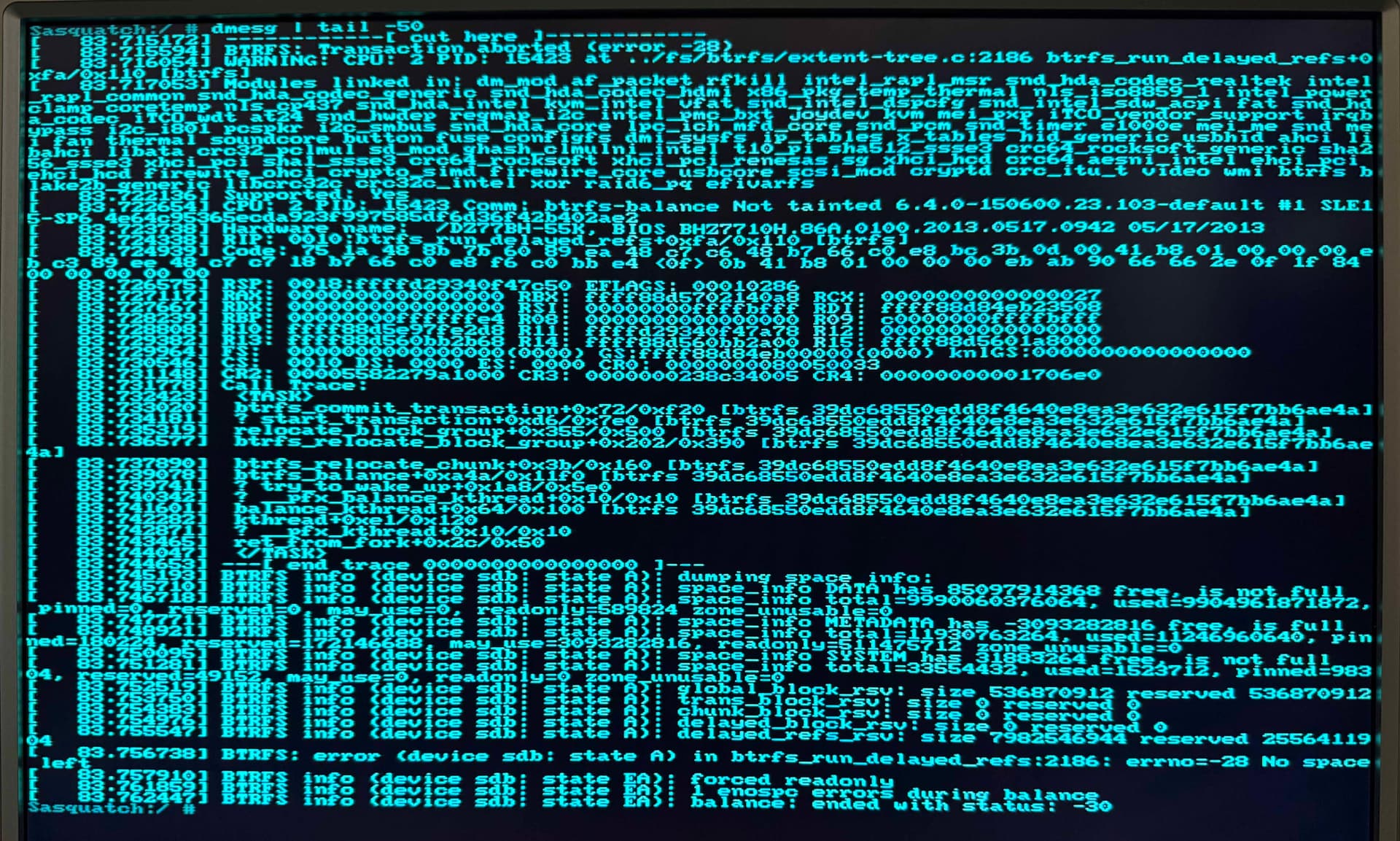
Here is the last 50 lines of the dmesg log:

If I am reading this output correctly, it looks like the Metadata has no room to save anymore data.

Also, I do have all of the important data backed up, if I do lose the data that is not backed up, it wouldn’t be the end of the world :sweat_smile:.

Thanks, Rob

I guess, there’s is one more way to see whether you can get it to rw mode:

Explicitly unmount the pool and then mount it again:

umount /mnt2/Macdaddy

mount with a couple of additional options:

mount  -o rw,clear_cache,skip_balance,nospace_cache,enospc_debug /dev/sdb /mnt2/Macdaddy

If that works, you could first do a bit of metadata balancing:

btrfs balance start -musage=5 /mnt2/Macdaddy

then run it again with -musage=10 and once more with -musage=20. Once that’s finished (if any of this works…), then you can start with the data balancing like before:

btrfs balance start -dusage=10 /mnt2/Macdaddy

and subsequent runs with increased -dusage= like before.

The nocache_space forces Btrfs to scan the entire block group tree on disk to find free space rather than relying on a stored cache, not something you want to do in standard use, but apparently also helps avoid further space contention in this “no space” scenario.

The enospc_debug is just an increased level of debugging around the no space issue that can further help with what’s amiss, but as you’ve said it’s likely as simple as no metadata space left (and very little to none data space as well).

Depending on whether you have a lot of snapshots on your system (that are materially different from each other, i.e. taking up real disk space), I think there could be a last hail mary pass where you could mount just the root, and delete some snapshots off your system, but I have not tried anything like that, so it would be highly “experimental” from my perspective.

I think if none of this works, you might already be at the point where you have to destroy the entire pool and create a new one with all of the disks, and restore your data from a backup onto the drive. @phillxnet, @Flox any other advice you might have here?

I always hear it’s good to have around 10-15% of pool space left over, but not sure how much that’s rooted in empirical studies. Of course, that doesn’t help you at this very moment either :slight_smile: .